> ## Documentation Index
> Fetch the complete documentation index at: https://docs.codebeaver.ai/llms.txt
> Use this file to discover all available pages before exploring further.
# Triggers
> Triggers define when CodeBeaver will start working for you.
CodeBeaver can be triggered in multiple ways.
## Pull Request opened on GitHub, GitLab or Bitbucket
CodeBeaver can be triggered every time a Pull Request is opened on GitHub, GitLab (Merge Request) or Bitbucket. This is the most common way to trigger CodeBeaver. To set this up, just make sure that your repository is marked as "Active" in the [CodeBeaver dashboard](https://app.codebeaver.ai/dashboard). For example:
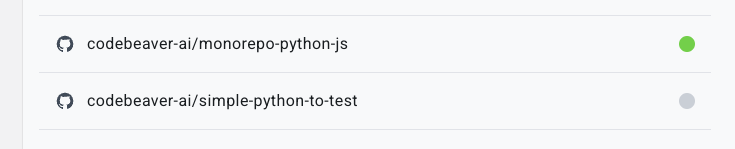 In this example, the repository `monorepo-python-js` is active. This means that CodeBeaver will run tests on every Pull Request opened on this repository. The repository `simple-python-to-test` is inactive. This means that CodeBeaver will not run tests on Pull Requests opened on this repository.
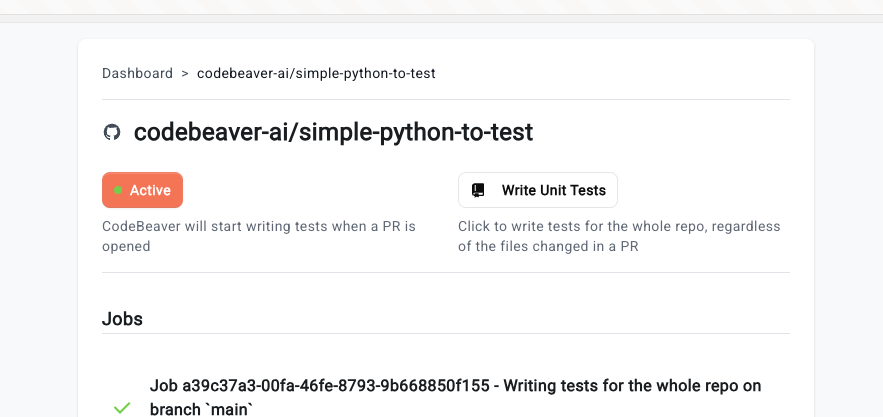
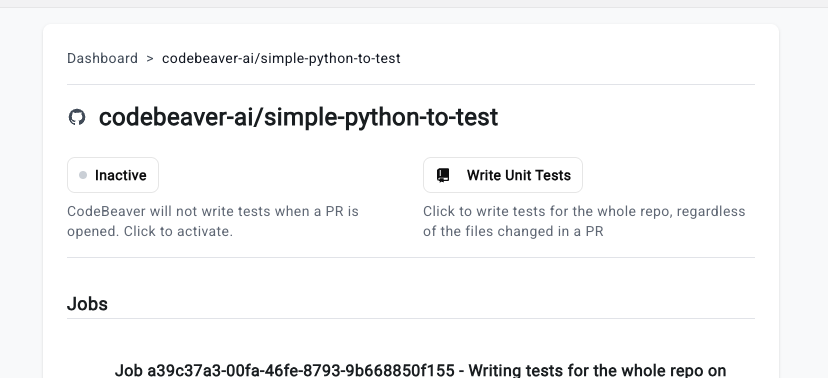 To activate a repository, click on it in the dashboard and click the "Inactive" button in the repository view. It will turn into "Active" like so:
 ## GitHub Action
You can trigger CodeBeaver as part of our CI/CD integration features. [Check out the dedicated page in our docs](/integrations/cicd/)
## Manual trigger: Pull Request
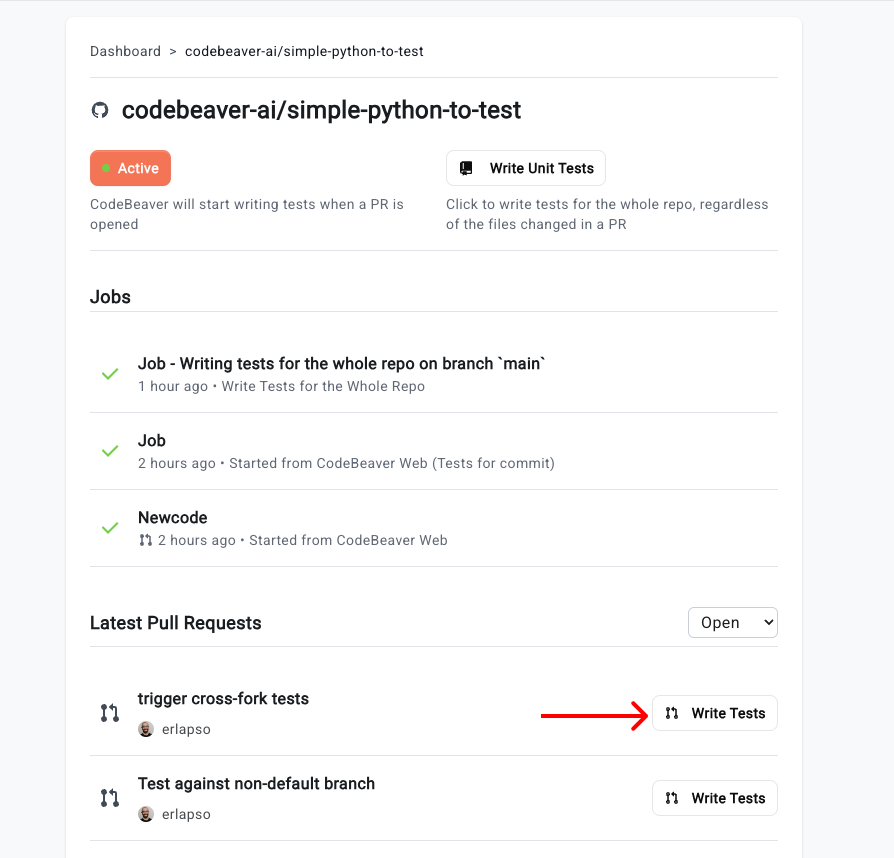
You can also trigger CodeBeaver manually. This is useful if you want to have CodeBeaver write the tests against a specific Pull Request. To do this:
* Go to the [CodeBeaver dashboard](https://app.codebeaver.ai/dashboard)
* Click on the repository you want to trigger
* Scroll down to the "Pull Request" section
* Click on the "Write tests" button
## GitHub Action
You can trigger CodeBeaver as part of our CI/CD integration features. [Check out the dedicated page in our docs](/integrations/cicd/)
## Manual trigger: Pull Request
You can also trigger CodeBeaver manually. This is useful if you want to have CodeBeaver write the tests against a specific Pull Request. To do this:
* Go to the [CodeBeaver dashboard](https://app.codebeaver.ai/dashboard)
* Click on the repository you want to trigger
* Scroll down to the "Pull Request" section
* Click on the "Write tests" button
 ## Manual trigger: Write tests for specific files
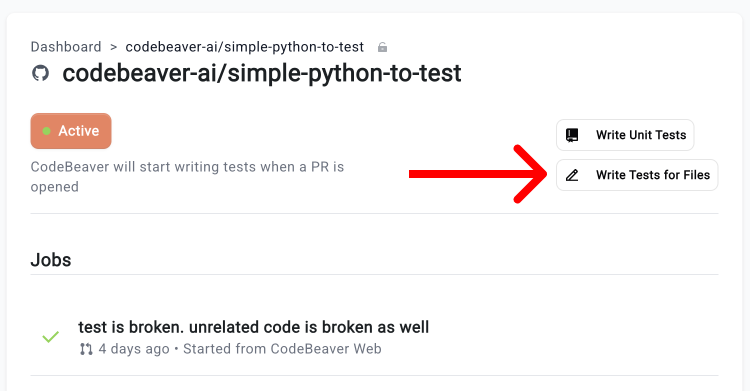
You can also trigger CodeBeaver manually for specific files. This is useful if you want to have CodeBeaver write the tests for a range of files you deem more important. To do this:
* Go to the [CodeBeaver dashboard](https://app.codebeaver.ai/dashboard)
* Click on the repository you want to trigger
* Click on the "Write Tests for Files" button on top
## Manual trigger: Write tests for specific files
You can also trigger CodeBeaver manually for specific files. This is useful if you want to have CodeBeaver write the tests for a range of files you deem more important. To do this:
* Go to the [CodeBeaver dashboard](https://app.codebeaver.ai/dashboard)
* Click on the repository you want to trigger
* Click on the "Write Tests for Files" button on top
 * Pick the branch you want to write tests for
* Multi-select the files you want to write tests for
* Click on the "Write tests for Files" button
## Manual trigger: Write tests for the whole repo
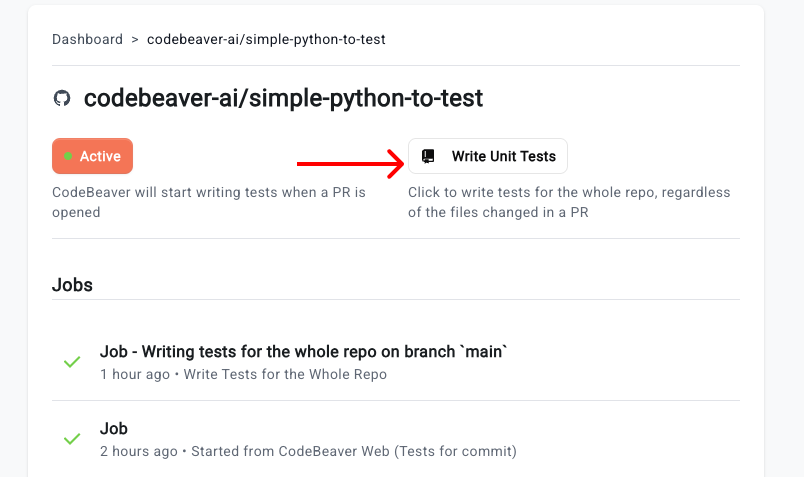
You can also trigger CodeBeaver to write tests for the whole repository. To do this:
* Go to the [CodeBeaver dashboard](https://app.codebeaver.ai/dashboard)
* Click on the repository you want to trigger
* Click on the "Write Unit Tests" button on top
* Pick the branch you want to write tests for
* Multi-select the files you want to write tests for
* Click on the "Write tests for Files" button
## Manual trigger: Write tests for the whole repo
You can also trigger CodeBeaver to write tests for the whole repository. To do this:
* Go to the [CodeBeaver dashboard](https://app.codebeaver.ai/dashboard)
* Click on the repository you want to trigger
* Click on the "Write Unit Tests" button on top
 * Pick the branch you want to write tests for
* Click on the "Write Unit Tests" button
CodeBeaver will write and run tests for a maximum of 20 minutes, then it will stop. The resulting Pull Request will contain a report of the skipped files. 20 minutes is usually *not* enough to write tests for medium-sized repositories. If you want to use CodeBeaver to cover all of your repo, you have two ways:
* Check out the [configuration](/configuration) page to learn more about how to configure the timeout.
* Merge the resulting Pull Request and then run CodeBeaver again to incrementally cover your repository.
# Manual trigger: Write tests for a commit
You can also trigger CodeBeaver to write tests for a specific commit. This is useful if you want to have CodeBeaver write the tests for a specific commit. To do this:
* Go to the [CodeBeaver dashboard](https://app.codebeaver.ai/dashboard)
* Click on the repository you want to trigger
* Scroll down to the "Latest Commits" section
* Pick the commit you want to write tests for
* Click on the "Write Unit Tests" button
* Pick the branch you want to write tests for
* Click on the "Write Unit Tests" button
CodeBeaver will write and run tests for a maximum of 20 minutes, then it will stop. The resulting Pull Request will contain a report of the skipped files. 20 minutes is usually *not* enough to write tests for medium-sized repositories. If you want to use CodeBeaver to cover all of your repo, you have two ways:
* Check out the [configuration](/configuration) page to learn more about how to configure the timeout.
* Merge the resulting Pull Request and then run CodeBeaver again to incrementally cover your repository.
# Manual trigger: Write tests for a commit
You can also trigger CodeBeaver to write tests for a specific commit. This is useful if you want to have CodeBeaver write the tests for a specific commit. To do this:
* Go to the [CodeBeaver dashboard](https://app.codebeaver.ai/dashboard)
* Click on the repository you want to trigger
* Scroll down to the "Latest Commits" section
* Pick the commit you want to write tests for
* Click on the "Write Unit Tests" button